Connecting to Your Workspace#
Before You Connect#
- Ensure your workspace is Running:

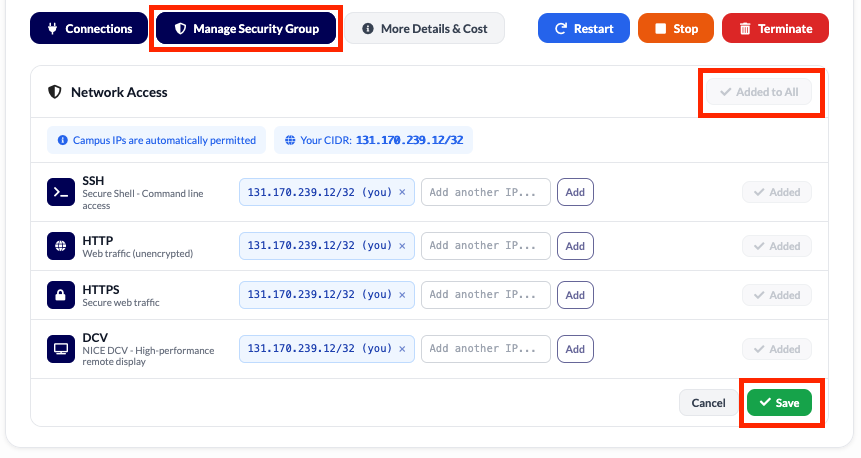
- Verify your IP address has been added to the workspace security group.
Connection Options#
The avalaible connection methods depend on the workspace type you have selected:
Windows: RDP or DCV
Linux: SSH or DCV
- Click “Connections” on your workspace card:
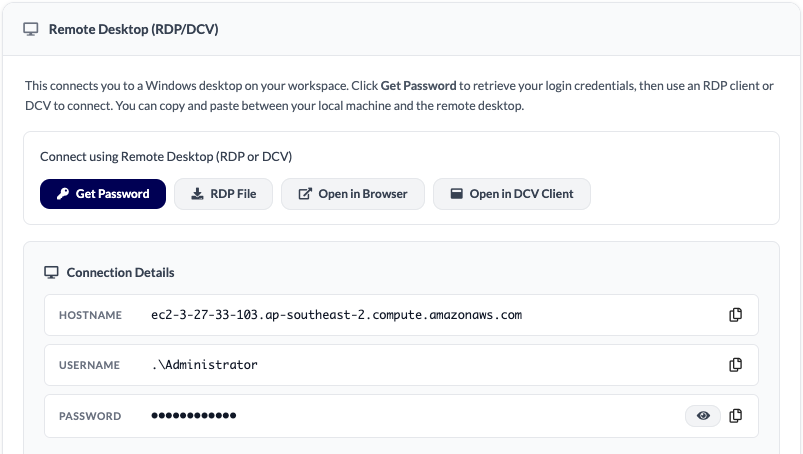
- Open your RDP client (or press the RDP File button, open the downloaded rdp file and copy/paste the Username/Password):
- Windows (Built-in): Press Win+R, type mstsc, and press Enter
- Windows/MacOS (Windows App): Open the “Windows App” application
- Select “Add”, then “PCs” (Windows App only).
- Enter the provided hostname and username into the client.
- Save and connect. You will be prompted for the provided password.
If you are using an RMIT laptop, when prompted for a username and password, first click “more users” and then enter the provided username and password.
- Click “Connections” on your workspace card:
- Select DCV Browser or Client (please install the client before using the client button).
- Enter the provided username and password, and press “Connect”.
-
Click “Connections” on your workspace card:
-
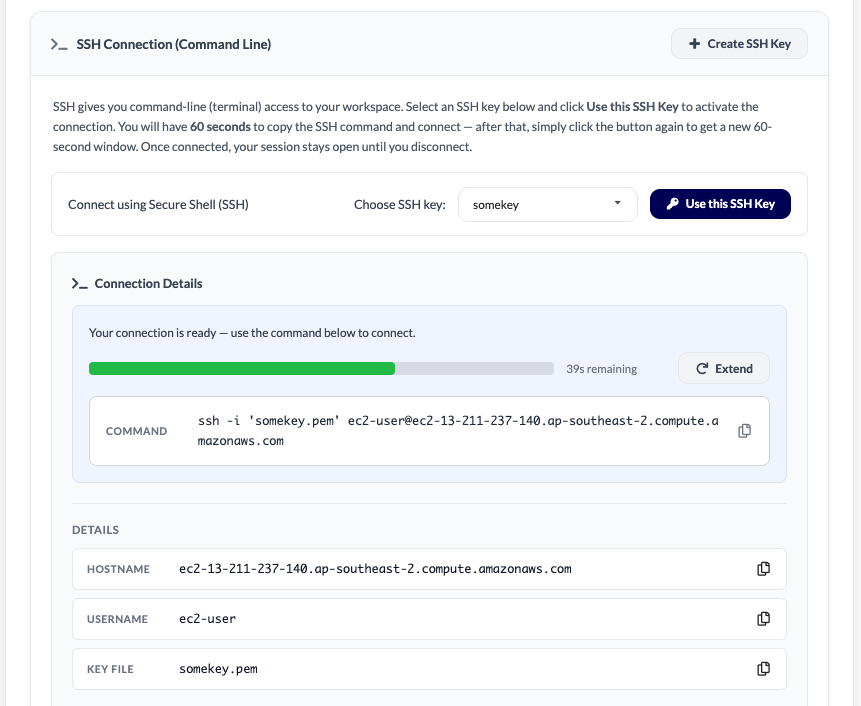
Select an SSH key below and click “Use this SSH Key” to activate the connection. You will have 60 seconds to copy the SSH command and connect. More details below:
Windows:
- Open PowerShell (search for it in the Start menu)
- Navigate to the folder where your SSH key was downloaded: cd .\Downloads
- Copy the SSH command shown above and paste it into PowerShell
- If prompted to trust the host, type yes and press Enter
Mac/Linux:
- Open Terminal (on Mac: search for “Terminal” in Spotlight)
- Navigate to your SSH key folder: cd ~/Downloads
- Set key permissions (first time only): chmod 400 somekey.pem
- Copy the SSH command shown above and paste it into Terminal
- If prompted to trust the host, type yes and press Enter